A read-only AI technical artist that lives in Maya, sees your scene and your Fabricator rig, and hands you paste-ready fixes. Use the built-in assistant, or connect your own AI client.


![The FabricatorStudio toolbar, with the [AI.TA] badge button that opens AI Technical Artist](/_astro/toolbar.DE7ppFhd_13Yt9a.webp)
What
Reads your real scene, hands you the fix
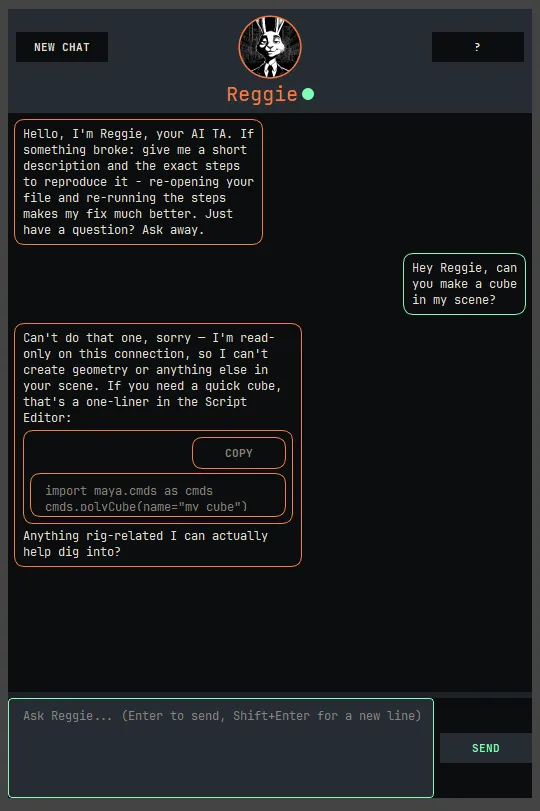
FabricatorStudio ships with an AI technical artist that can actually read your open Maya scene and the Fabricator rig in it. Ask it why a build failed, where a rig went weird, or how a tool works; it answers from real scene facts instead of guessing, then hands you a script to paste and run yourself.
It comes two ways, over the same read-only bridge:
Reggie
The assistant built into the Bridge toolbar, docked and ready in the AI.TA panel, no setup.
Connect Your AI
Points your own client (Claude Code, Claude Desktop, Cursor, or any MCP client) at the same bridge: your model, your key.
Why
A second pair of eyes that can read the node graph
A Build Rig or Unbuild failed and you want to know why, in plain language.
Something in the rig looks wrong and you want eyes that can actually read the node graph.
You forgot how a tool or component works and want the answer without leaving Maya.
An export is behaving oddly and you want to diagnose it before Skeleton IO, Skin IO, or the exporters.
It reads scene summaries, build reports, component details, and node state through a read-only operation registry, so it grounds every answer in what's really in your file.
How
Reggie needs no setup, or connect your own
Reggie: open the Bridge toolbar and use the AI.TA panel. That's it.
To connect your own client, use Connect AI under Settings on the toolbar strip. It starts a small local bridge that listens on loopback only (127.0.0.1, default port 6292) and never talks to any server but the one on your own machine.
- 1
In Maya, open the Bridge toolbar's Settings zone and click Connect AI to open its popover.
- 2
Click Start. The status pill switches from STOPPED to LISTENING ON <port>.
- 3
Pick your client (claude-code, claude-desktop, cursor) and click Copy to grab that client's config snippet.
- 4
Set up your client: for Claude Code, run
claude mcp add fabricator -- uvx fabricator-mcp; for Claude Desktop or Cursor, paste the copied mcpServers block into that client's MCP config file. - 5
In your client, ask it to check your Fabricator rig's status. If it answers with real details about your open scene, the connection is working.
Your client reaches the bridge through a small package, fabricator-mcp (installed and run via uvx), which relays each read-only call to the bridge over a local connection.
How it works
Evidence first, smallest fix, always in your hands
Gathers evidence first
Scene and rig status, pre-build checks, the last build report, the scene report, a viewport screenshot if the problem is visual, before proposing anything.
Proposes the smallest fix
A plain maya.cmds script for you to paste and run, or a pointer to an existing Fabricator button. It never claims it performed a change itself.
Undo before diagnosing
On a build/unbuild failure, it has you press Ctrl+Z once before scanning, so it reads the pre-failure state rather than the wreckage.
You file the bug, not it
Only after a real fix has failed does it offer a pre-filled GitHub issue URL with diagnostics, which you review and submit under your own account. Nothing is auto-posted.
Off by default, off across restarts
The bridge stays off across Maya restarts unless Start with Maya is checked. If your AI can't reach Maya, it most likely just isn't started yet.
No auth, loopback only
Any process on your machine can connect while it's running, a stated trust boundary (the posture other local DCC bridges use), worth knowing on a shared machine.
Reading attributes evaluates the graph
Reading a node forces Maya to evaluate its dependency graph; in a scene with a malicious expression or plug-in, that can run arbitrary code. Inherent to touching such a scene at all; only connect it to scenes you trust.
Screenshot is a throwaway temp PNG
The viewport screenshot writes one PNG to your OS temp dir and deletes it after reading the bytes. Interactive sessions only, not batch or standalone Maya.
Request bursts are capped
A burst of many requests is capped so a heavy session doesn't stall Maya's main thread; anything past the cap waits for the next tick rather than failing.
Troubleshooting
"Maya isn't listening…"
The bridge isn't started, or it's on a different port than your client. Open Connect AI and click Start; if you changed the port, pass --port <n> on both sides.
Status pill reads ERROR
Hover it; the tooltip carries the actual failure (e.g. port already in use). Click Stop, then Start again, or set a different port.
Every call fails with "unknown_op" / "Protocol mismatch"
Your fabricator-mcp package and the running Maya-side bridge have drifted. Update whichever side is behind so both agree on the same operations.
A call comes back "maya_busy"
Maya's main thread didn't answer in time, usually a long-running op or an open modal dialog. Let Maya go idle, then try again.
"No viewport in batch/standalone mode"
Maya is headless, no viewport to capture. The screenshot tool only works in an interactive session.
Rig tools return "not_found" / "no build report"
No Fabricator rig built in the current scene yet, or no build this session. Load or build a rig first, then ask again.