Save and reuse full-rig poses and animation clips across every rig built with Fabricator; poses and clips travel cross-rig by component identity, not node names.



What it does
One popover, two tabs, any rig
One popover with two tabs, POSE and ANIM, launching Pose Studio and Animation Studio. Both save and load onto any rig built with Fabricator.
Controls are addressed by component identity (type, side, role), not by node name. Thumbnails are framed in an embedded viewport; search and user-authored sets keep large libraries usable; selection sets mask a pose down to just the controls you choose.
The two studios
Each embedded in its own tab
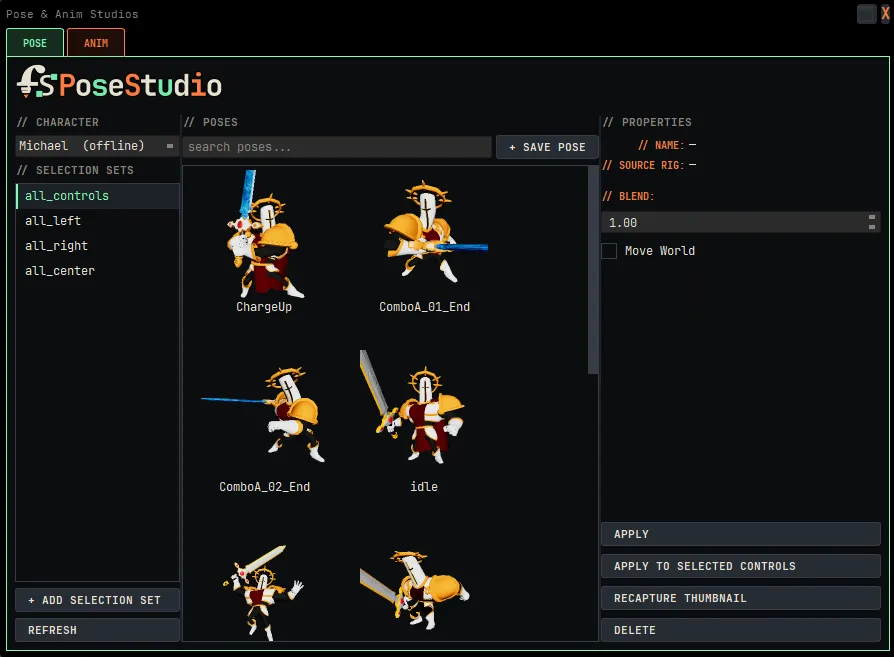
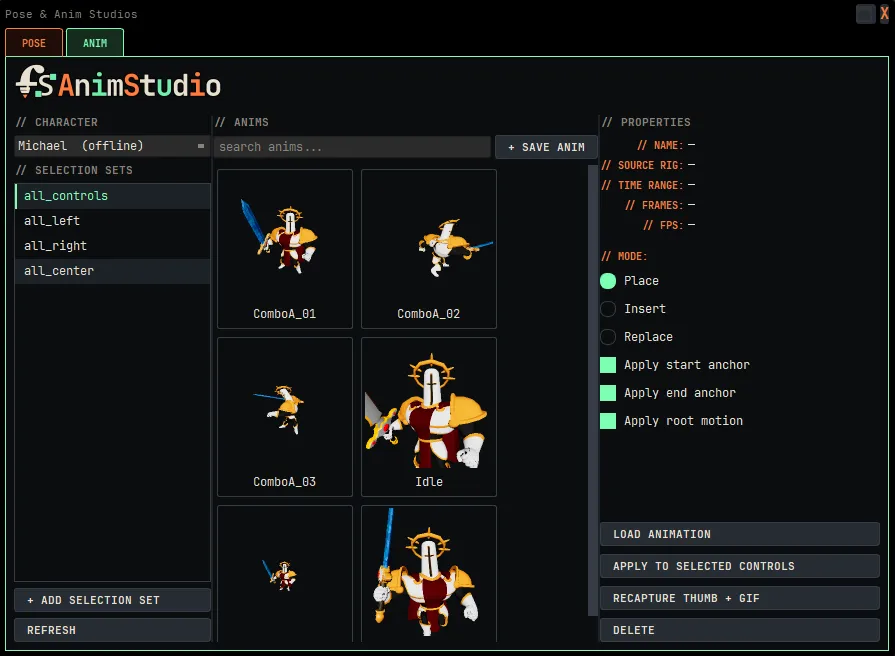
Both resolve their library location per project, so a team shares one place.
- 1
Open the Library button on the Bridge toolbar and pick the POSE or ANIM tab.
- 2
Select the rig controls (or the whole rig) you want to capture.
- 3
Save, frame the thumbnail, and name it into a set.
- 4
On another rig, select it and load; the library maps controls by identity.
Unmatched controls are skipped
Cross-rig load maps by component identity; a control with no matching identity on the target rig is skipped rather than mis-applied.
Pose mirroring on the shelf
Pose mirroring currently lives on the shelf, not inside the Pose Studio UI (roadmap).